Using Instant Vibes with Ableton Live
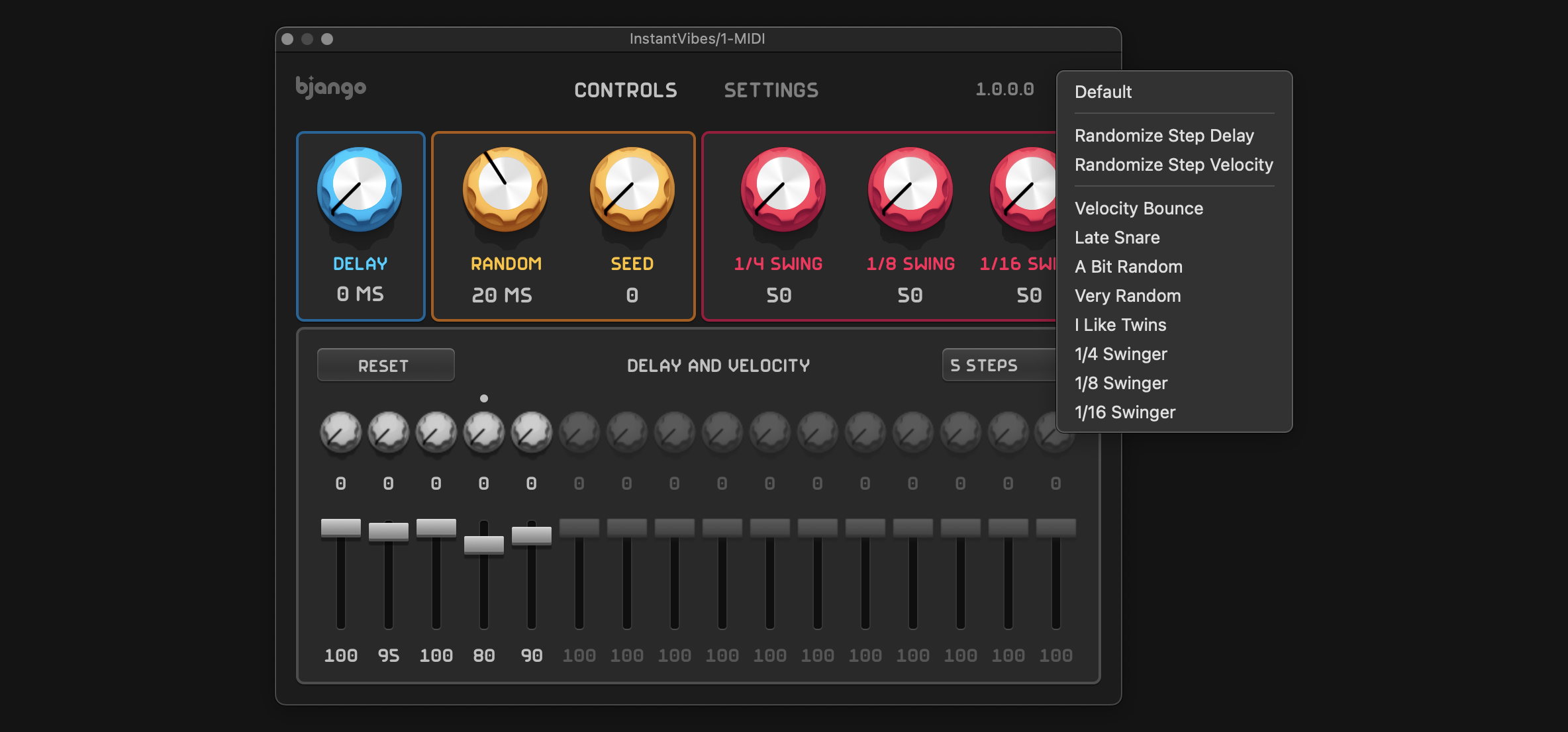
Instant Vibes is a human MIDI groove unquantizer plugin. It runs as a MIDI effect in audio apps, changing the timing or velocity of notes. This means the setup is a bit different to normal audio effects plugins.
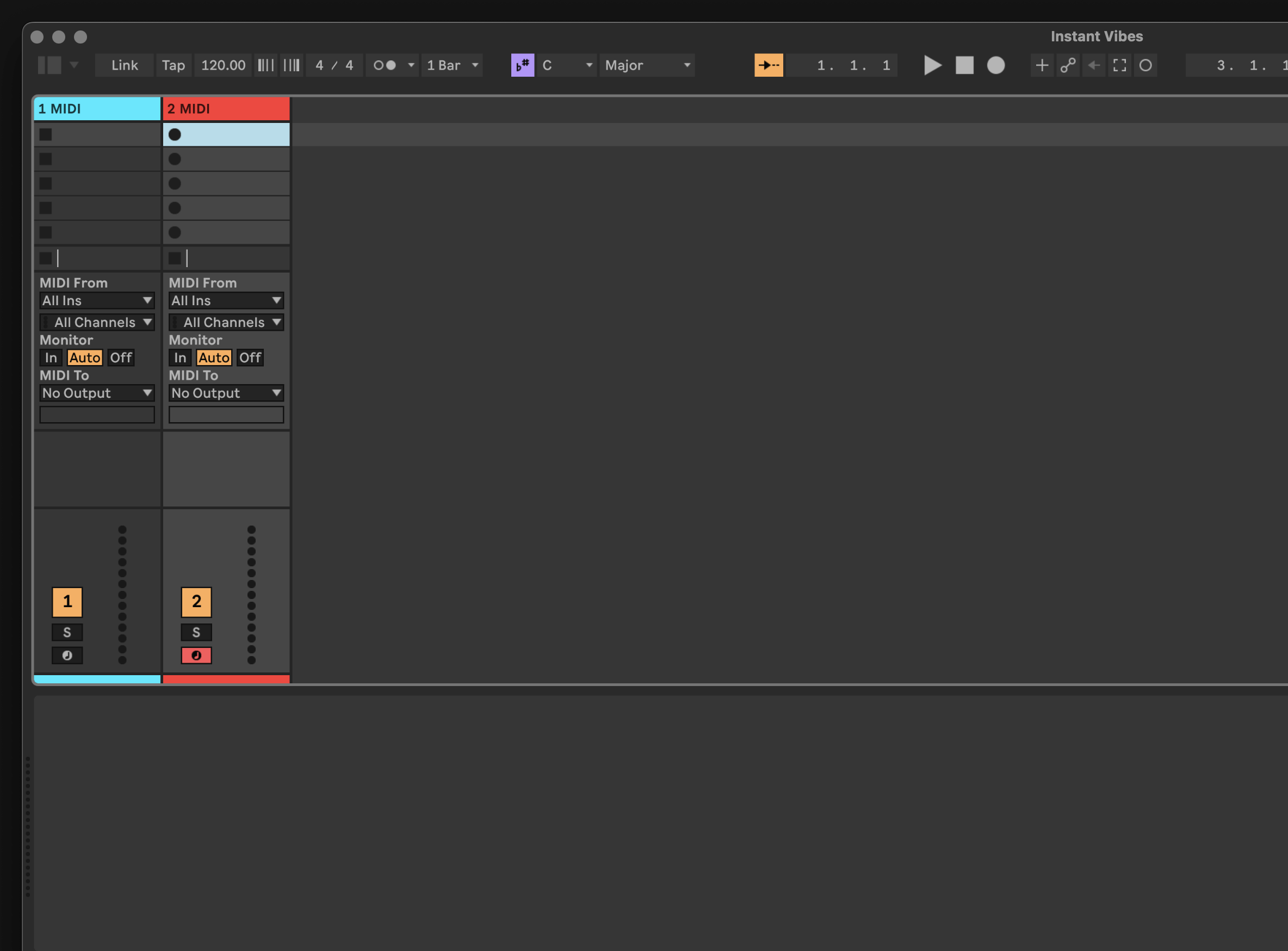
1. Create two MIDI tracks #
Start by creating two MIDI tracks. One will be used for Instant Vibes, and the other will be used for your instrument.
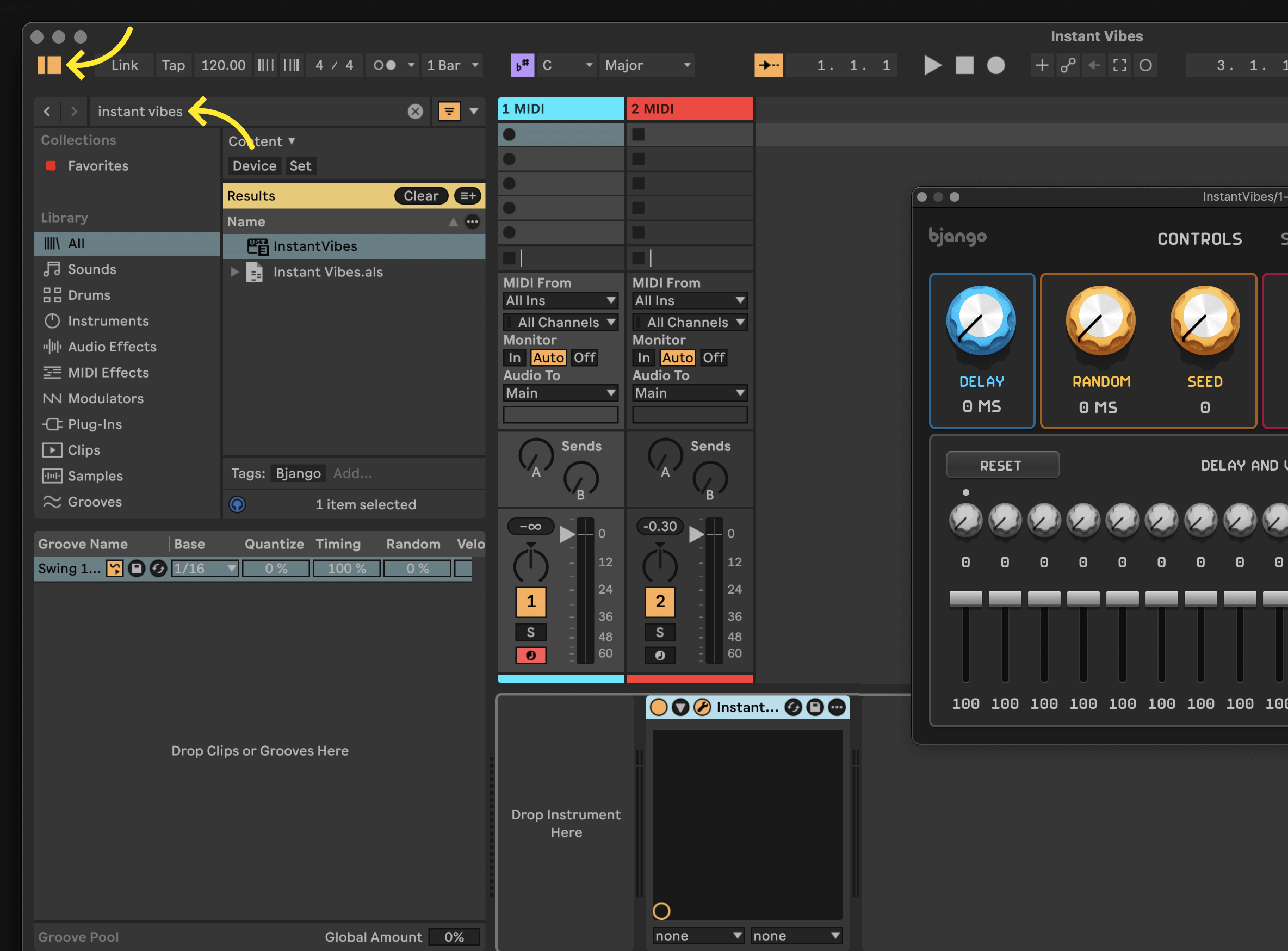
2. Add Instant Vibes #
Select the first MIDI track, then open the browser by clicking the button at the top left of the window, and search for Instant Vibes. Double click Instant Vibes in the search results to add it to the track.
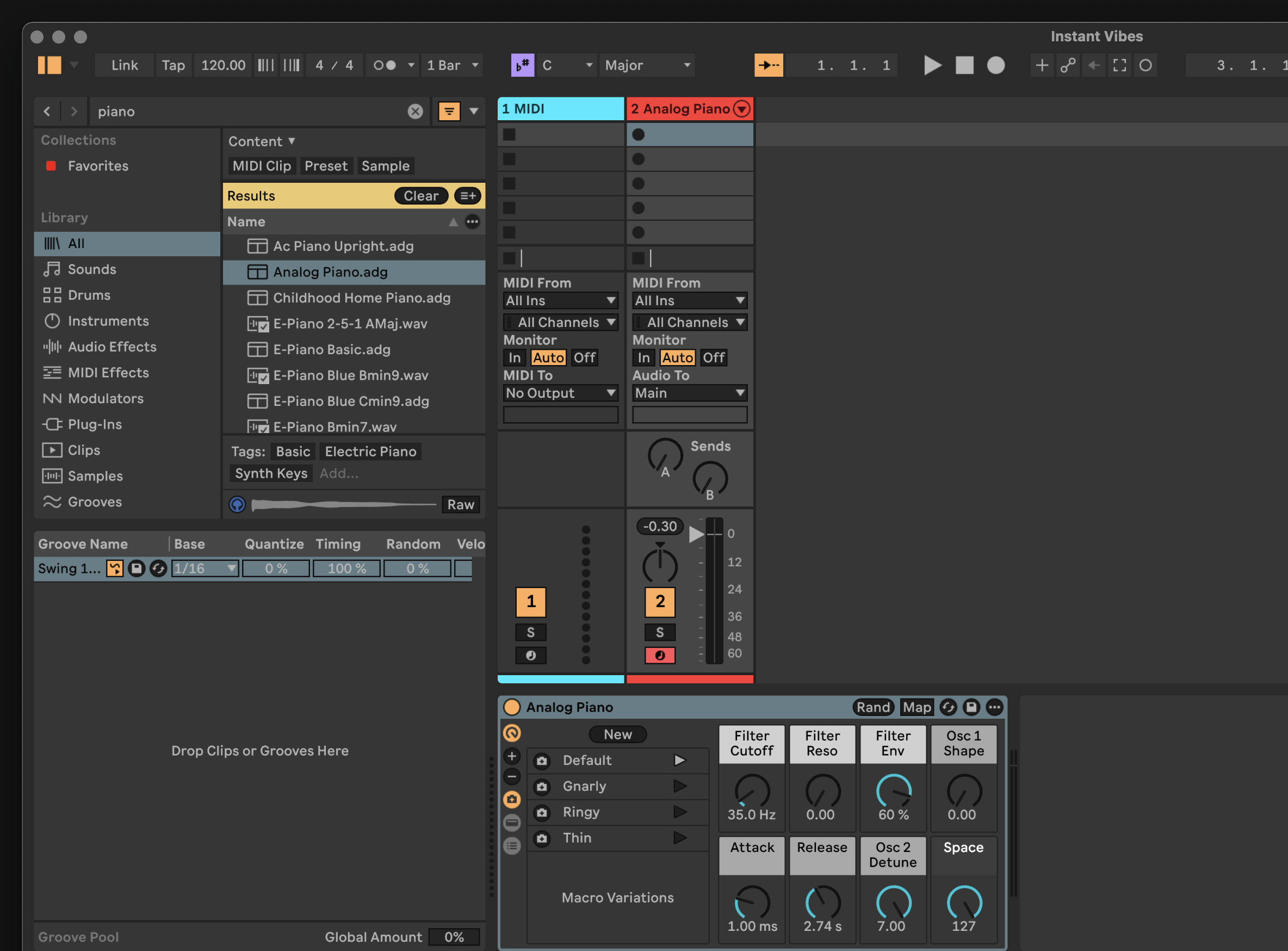
3. Add an instrument #
Select the second MIDI track, then add an instrument. This can be done in the same way as the previous step — search by typing an instrument name into the search field and then double clicking the name of the instrument to add it to the track.
4. Set up MIDI routing #
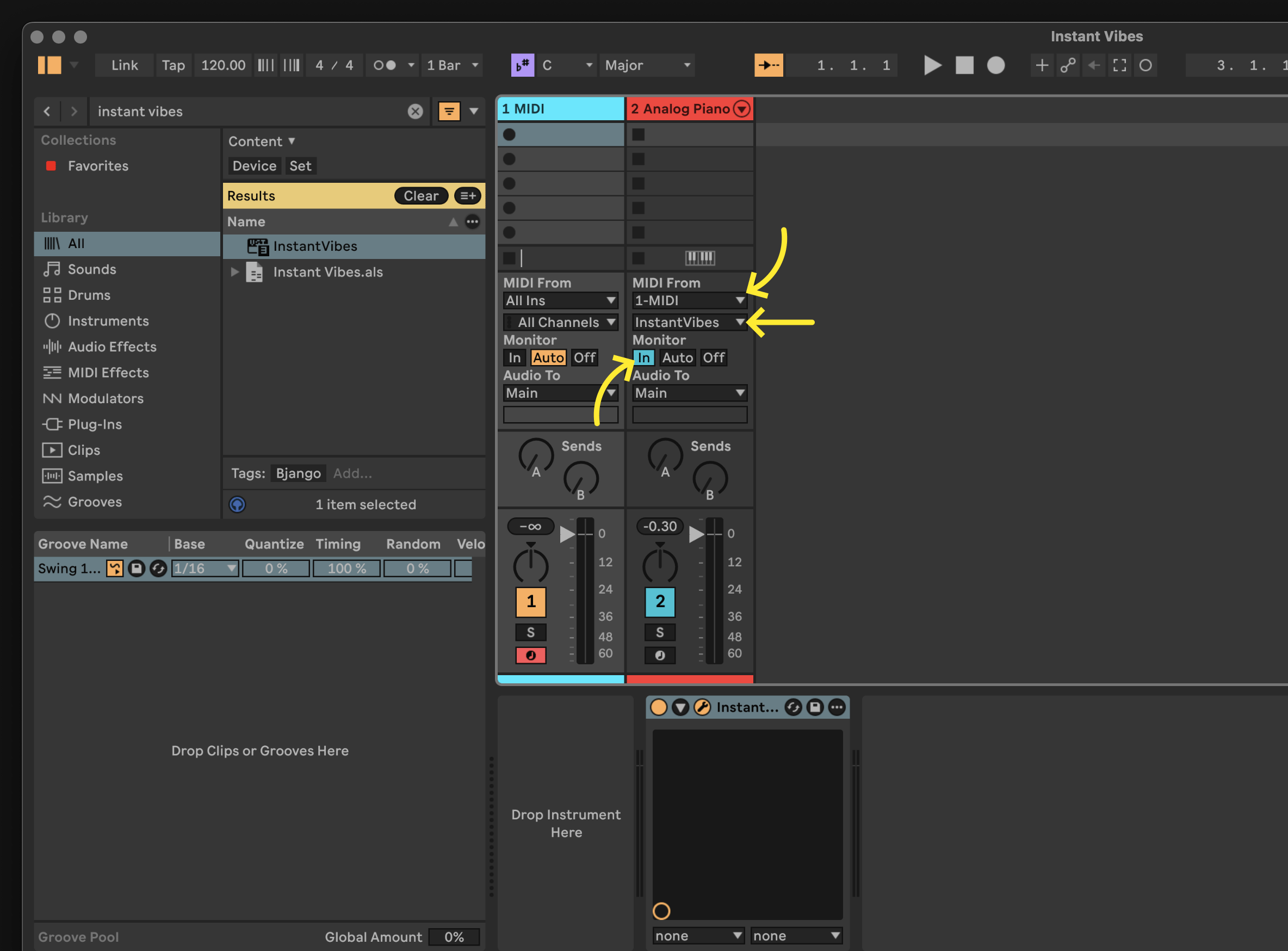
In the second MIDI track, set up the routing. There’s three steps:
- Change the first
MIDI fromitem to match the first MIDI track. - Change the second
MIDI fromitem to be Instant Vibes. - Change
Monitorto beIn.
You should now be able to play the instrument, modified by Instant Vibes, by placing MIDI regions on the first MIDI track (the one with Instant Vibes).
You’re all ready to go! The button on the top right of the plugin contains some presets that can help you get started.