Using Instant Vibes with FL Studio
Instant Vibes is a human MIDI groove unquantizer plugin. It runs as a MIDI effect in audio apps, changing the timing or velocity of notes. This means the setup is a bit different to normal audio effects plugins.
There’s a few different ways to use Instant Vibes in FL Studio, but the easiest is probably via the Patcher plugin.
1. Download the instrument version #
Some apps, like FL Studio, require MIDI effects plugins to be tagged as an instrument. We have a special version of Instant Vibes for apps with this requirement. Please download the instrument version below.
2. Add a the Patcher plugin #
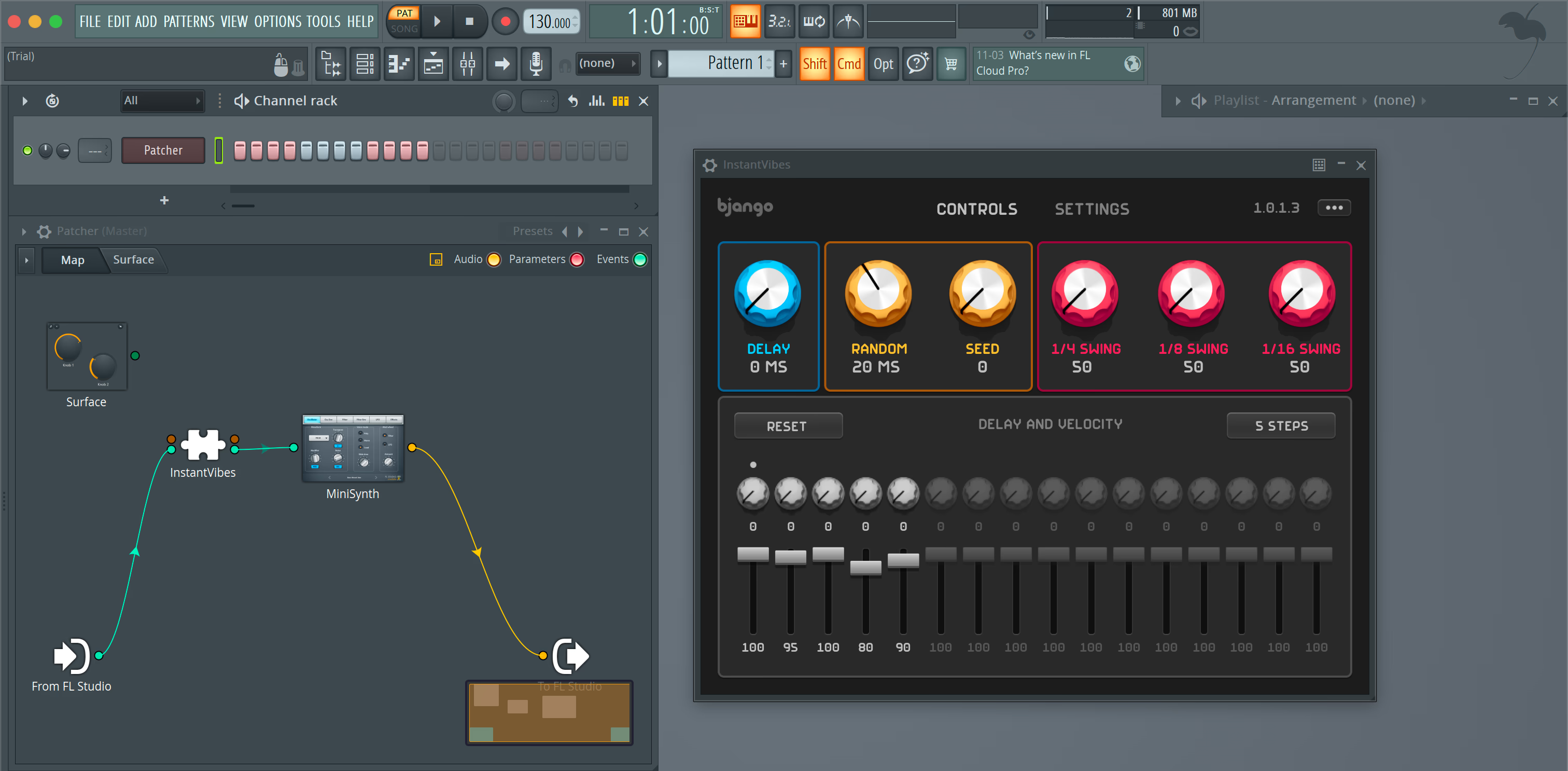
In the Channel Rack, click + and add the Patcher plugin.
3. Add Instant Vibes and your instrument #
Inside the Patcher, right click and choose Add Plugin, and navigate to Instant Vibes. Then, right click and choose Add Plugin again, and add the instrument you’d like to use with Instant Vibes.
Drag the noodles so that the there’s lines connecting these items:
- A green line connecting
From FL Studioto the input ofInstant VIbes. - A green line connecting the output of
Instant Vibesto the input of your instrument. - An orange line connecting the output of your instrument to
To FL Studio.
Green lines represent MIDI data, and orange lines represent audio.
4. Edit the Instant Vibes settings #
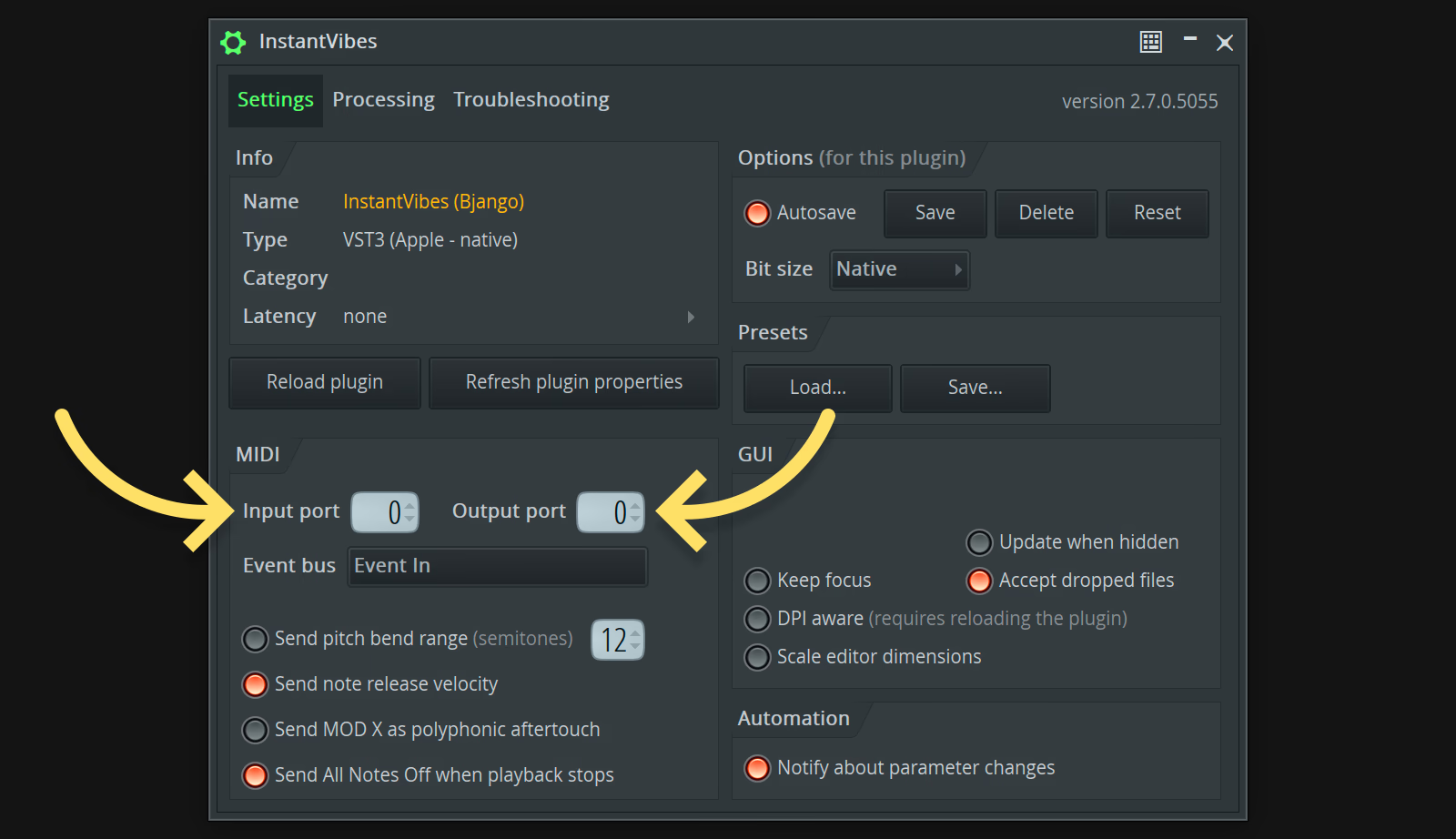
Go into the plugin settings and set an input MIDI channel and output MIDI channel. The instrument being used after Instant Vibes will need to respond to the same MIDI channel.
If Instant Vibes looks too big #
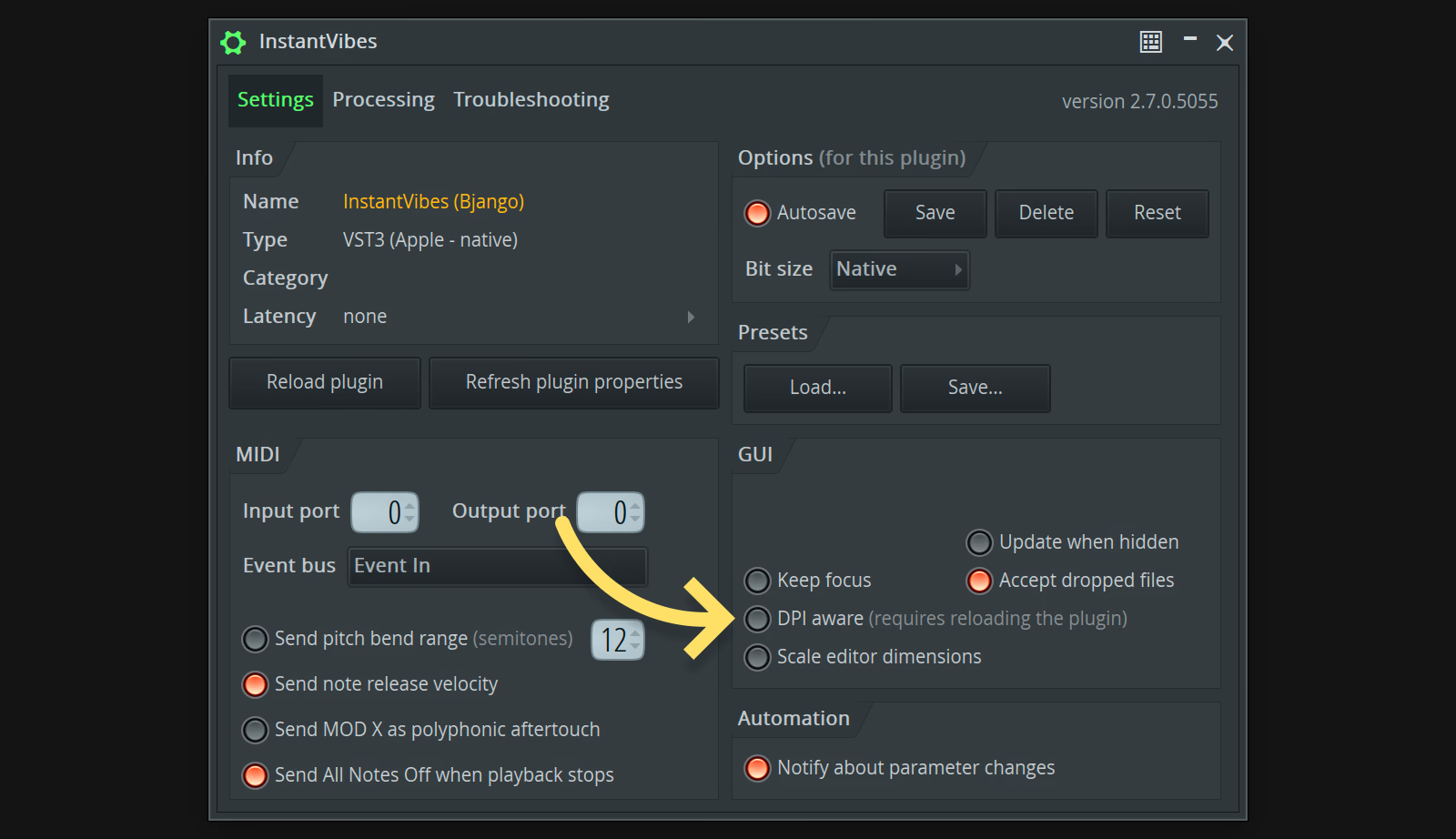
If the plugin window for Instant Vibes looks too big, please go into the plugin settings and uncheck DPI aware, then remove the plugin and re-add it.